Linux process state codes explained: R, S, D, Z and more in ps and top
What the STAT column in ps and the S column in top mean on Linux: every process state code (R, S, D, I, T, Z…), the extra flags like s, l and +, and how to find stuck and zombie processes.
On this page6 sections
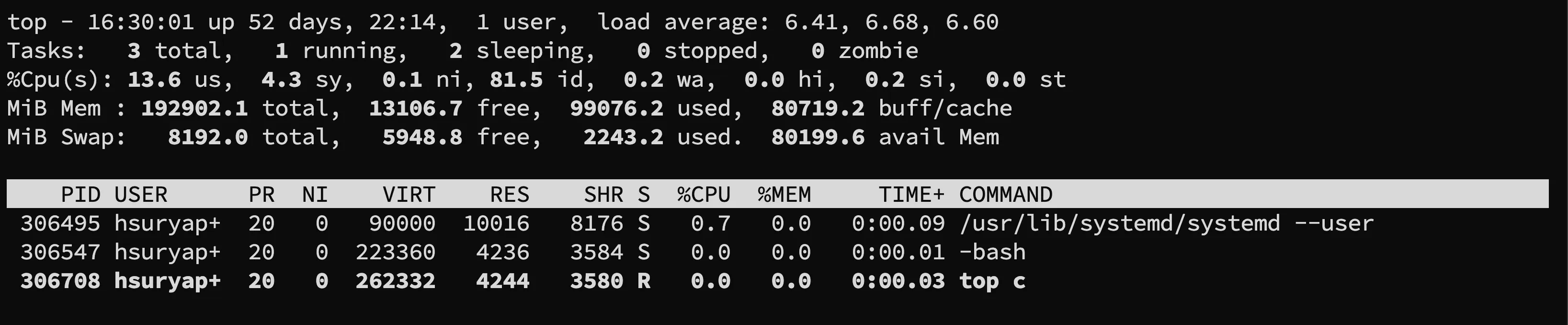
Every process on Linux has a state, and ps and top show it as a single letter. In ps it’s the STAT column, in top it’s the S column. This is the cheat sheet I keep coming back to.
The state codes
| Code | State | What it means |
|---|---|---|
R |
running or runnable | Running on a CPU right now, or ready and waiting for its turn. |
S |
interruptible sleep | Waiting for something (input, a timer, a network packet). A signal can wake it up. Most processes sit here most of the time. |
D |
uninterruptible sleep | Waiting on I/O, usually disk or NFS. Signals don’t wake it, so even kill -9 has to wait. |
I |
idle kernel thread | A kernel thread with nothing to do. Added in Linux 4.14, so you’ll see plenty of these on any modern box. |
T |
stopped | Paused by a job control signal, e.g. you hit Ctrl+Z or sent SIGSTOP. |
t |
stopped by debugger | Paused by a tracer like gdb or strace. |
Z |
zombie | Finished, but its parent hasn’t collected the exit status yet. |
X |
dead | Should never show up. If you see it, something is off. |
W |
paging | Not used since kernel 2.6. You won’t see it anymore. |
The extra characters
With BSD-style output (ps aux) or the stat keyword, more characters come after the state letter:
| Flag | Meaning |
|---|---|
< |
high priority (negative nice value) |
N |
low priority (positive nice value) |
L |
has pages locked into memory, typical for real-time stuff |
s |
session leader, usually a shell or a daemon |
l |
multi-threaded |
+ |
in the foreground process group of its terminal |
So you read them left to right:
Ss: sleeping, session leader. A typicalsshdor login shell.Ssl: sleeping, session leader, multi-threaded. A lot of daemons look like this.R+: running, in the foreground. Usually thepsyou just typed.S<: sleeping, high priority.SN: sleeping, niced down.I<: idle kernel worker thread with high priority.
Commands I actually use
Show the state of every process:
ps -eo pid,ppid,stat,commCount processes by state:
ps -eo stat= | cut -c1 | sort | uniq -cOr check a single PID straight from /proc:
grep State /proc/<pid>/statusProcesses stuck in D
A few D processes now and then are normal, they’re just waiting for the disk. A lot of them that stay there means trouble, usually a slow or dead disk, or an NFS mount that went away.
ps -eo pid,stat,wchan:32,comm | awk '$2 ~ /^D/'wchan shows the kernel function the process is waiting in, which is often enough of a hint to tell disk from NFS. Also, on Linux, D processes count towards the load average. So if the load is high but the CPU is mostly idle, look for D first.
Zombies
A zombie is already dead, so you can’t kill it. Only its parent can clean it up, so find the parent:
ps -eo pid,ppid,stat,comm | awk '$3 ~ /^Z/'The second column is the parent PID. A couple of zombies don’t hurt anyone. If they keep piling up, the parent is buggy. Restart the parent and its zombies get cleaned up by init/systemd.
Source
All of this is from the PROCESS STATE CODES section in man ps (procps-ng). Worth a read on your own box, the man page is the reference for your version.