KelpShot: capture, explain, and share from your Mac
Meet KelpShot, my native macOS screenshot app. Try the free early access, learn how to get started, and help fund its $99 Apple signing goal.
On this page3 sections
A screenshot is often the quickest way to explain a bug, point out a detail, or show someone what to do next. But taking the screenshot is only the beginning: you still need to add an arrow, hide an email address, or copy text from the image.
I’m building KelpShot, a native macOS screenshot app that puts those steps in one place. The goal is simple: capture what matters, explain it clearly, and share it without breaking your flow.
The early access is available now, free to download with every feature included.
KelpShot at a glance
- macOS
- 14 Sonoma or later
- Mac
- Apple silicon (M1 or newer)
- Early access
- Free download, every feature included
- Privacy
- Screenshots and OCR stay on your Mac
What you can do with KelpShot
- Capture an area, a window, or the entire screen, with repeat-area and delayed capture options.
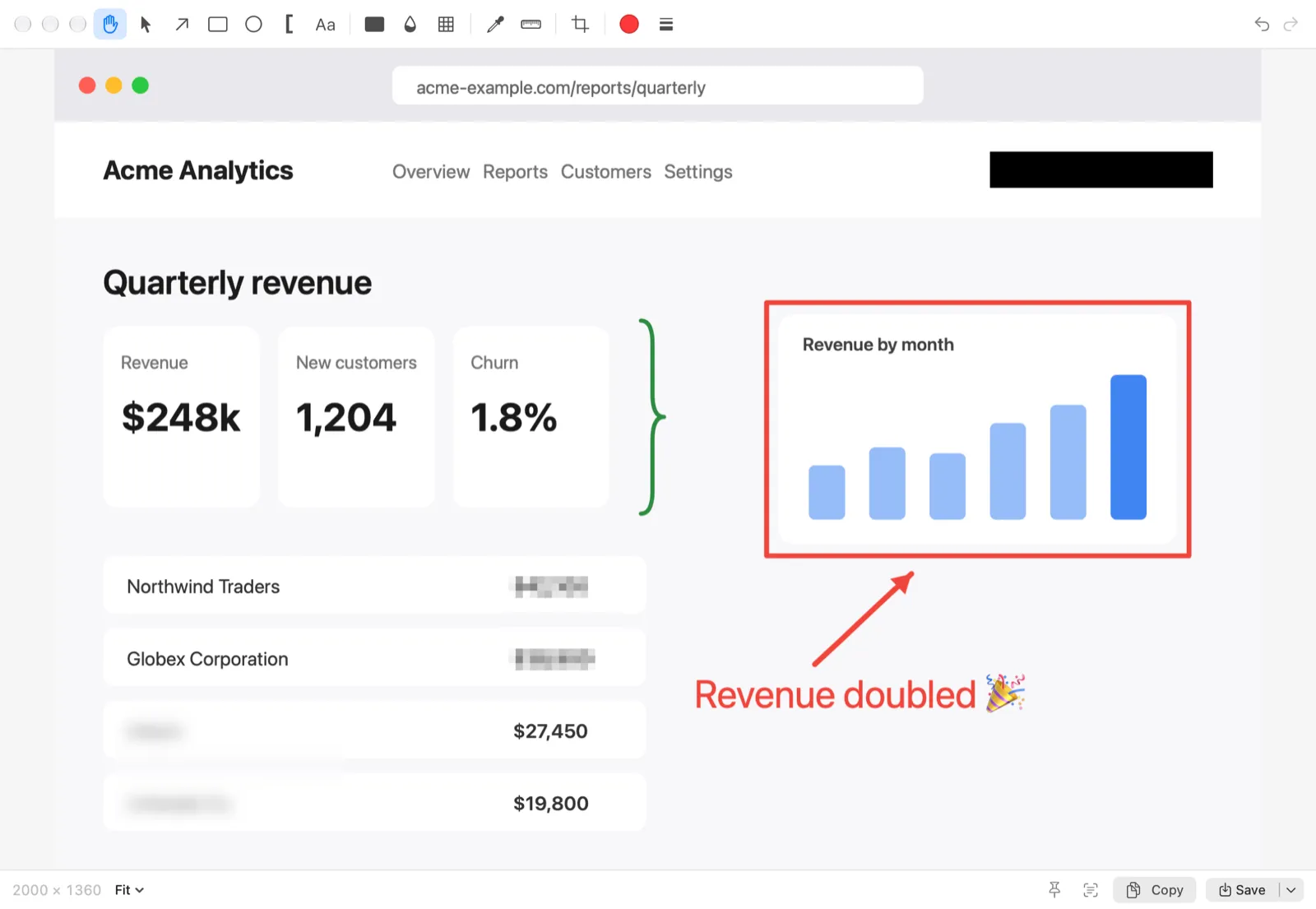
- Add arrows, shapes, text, highlights, and numbered steps to explain what matters.
- Cover sensitive details with solid redactions before copying or exporting.
- Recognize text and QR codes locally, so text inside an image becomes something you can copy.
- Pin an image above other windows, pick colors, and measure distances in pixels.
- Copy, save, or drag the finished image into the app where you need it.
Scrolling capture can also stitch a long page into one image.
Screenshots and text recognition stay on your Mac. KelpShot has no account, cloud upload, or tracking.
Get started
The early access build runs on Apple silicon Macs with macOS 14 or later. Intel Macs are not supported.
- Visit the KelpShot download and install guide, download the early access ZIP, and unzip it. The guide shows how to check the download first.
- Drag KelpShot.app into Applications.
- Open KelpShot. On macOS 15 or later, dismiss the warning, then go to System Settings → Privacy & Security → Security → Open Anyway and confirm. On macOS 14, Control-click the app, choose Open, and confirm.
- Start a capture and allow Screen Recording in System Settings → Privacy & Security when prompted. Quit and reopen KelpShot if macOS asks. Basic screenshots do not need Accessibility; automatic scrolling does.
- Choose Capture Area, or press Control–Option–Command–4, then drag over the part of your screen you want to capture. Add an arrow or text in the editor, cover anything private, and click Copy or Save.
You can try KelpShot now without donating.
Help KelpShot reach its $99 goal
The next milestone
- Goal
- US$99
- Funds
- One year of the Apple Developer Program
- Next release
- Developer ID signed and notarized
- For users
- A free update with easier installation
The Apple Developer Program enables Developer ID signing and notarization. That will let me distribute KelpShot without the extra unverified-developer steps during installation. Donations go toward that fee first. Once it is covered, the plan is to ship the signed and notarized build as a free update for everyone. Anything beyond the goal goes toward maintaining KelpShot.
Supporters can appear on the supporters wall, with an optional website or social link. Share the name you donated under, your preferred display name (or ask to stay anonymous), and an optional link in a private donation message or by email. If you also share an email address, you’ll receive a free Supporter license when licenses go on sale. Your email will not be displayed on the wall.
Trying KelpShot, sharing it with someone who takes a lot of screenshots, or reporting a rough edge also helps. Questions and feedback are welcome at hey@harry.id.
Try KelpShot · Visit the project page · Support the $99 goal